
How to Build a Custom PC Guide
How to Build a Custom PC: Your Ultimate Step-by-Step Guide
Building your own computer might seem like a daunting task reserved for tech wizards. However, with the right guidance, it’s an incredibly rewarding project that grants you superior performance, perfect customization, and significant cost savings compared to pre-built systems.
This comprehensive guide will walk you through the entire process, from initial planning to pressing the power button on your new machine.
Why Build a Custom PC?
Before diving into the components, it’s valuable to understand the core benefits. Firstly, building a PC allows you to tailor every part to your specific needs, whether for intense gaming, video editing, or everyday productivity. Consequently, you avoid paying for unnecessary features or weak components that often come in pre-built systems.
Moreover, the process itself provides a deep understanding of your machine, making future upgrades and troubleshooting far simpler.
Phase 1: Planning and Part Selection
The foundation of a successful build is meticulous planning. You must define your budget and primary use case, as these two factors will dictate every component choice.
Core Components You’ll Need
Here is a breakdown of the essential parts for any custom PC build:
| Component | Purpose | Key Consideration |
|---|---|---|
| Central Processing Unit (CPU) | The “brain” of the computer, handling instructions. | Match with your motherboard’s socket (e.g., AM5 for AMD, LGA 1700 for Intel). |
| Motherboard | The main circuit board connecting all components. | Must be compatible with your CPU and have the features you need (Wi-Fi, USB ports, etc.). |
| Graphics Processing Unit (GPU) | Handles rendering visuals; critical for gaming and design. | Arguably the most important for gaming performance. |
| Memory (RAM) | Short-term data storage for active tasks and applications. | 16GB is the current sweet spot for most users; 32GB for heavy multitasking. |
| Storage (SSD/HDD) | Long-term storage for your operating system, files, and programs. | An NVMe SSD is highly recommended for your primary drive due to blazing speed. |
| Power Supply Unit (PSU) | Supplies stable power to all components. | Never skimp here. Choose a reputable brand with 80 Plus certification (e.g., Bronze, Gold). |
| Case | The chassis that houses and protects all your components. | Ensure it fits your motherboard size (ATX, Micro-ATX) and has good airflow. |
| CPU Cooler | Keeps the processor from overheating. | Some CPUs include a capable stock cooler; high-performance chips need an aftermarket solution. |
Compatibility is Key
A critical step is verifying that all your chosen parts work together. Use online tools like PCPartPicker to automatically flag compatibility issues. Primarily, you must ensure the CPU socket on the motherboard matches your processor. Additionally, confirm the case is large enough for your motherboard and GPU, and that the power supply has sufficient wattage and the correct connectors.
Phase 2: The Assembly Process
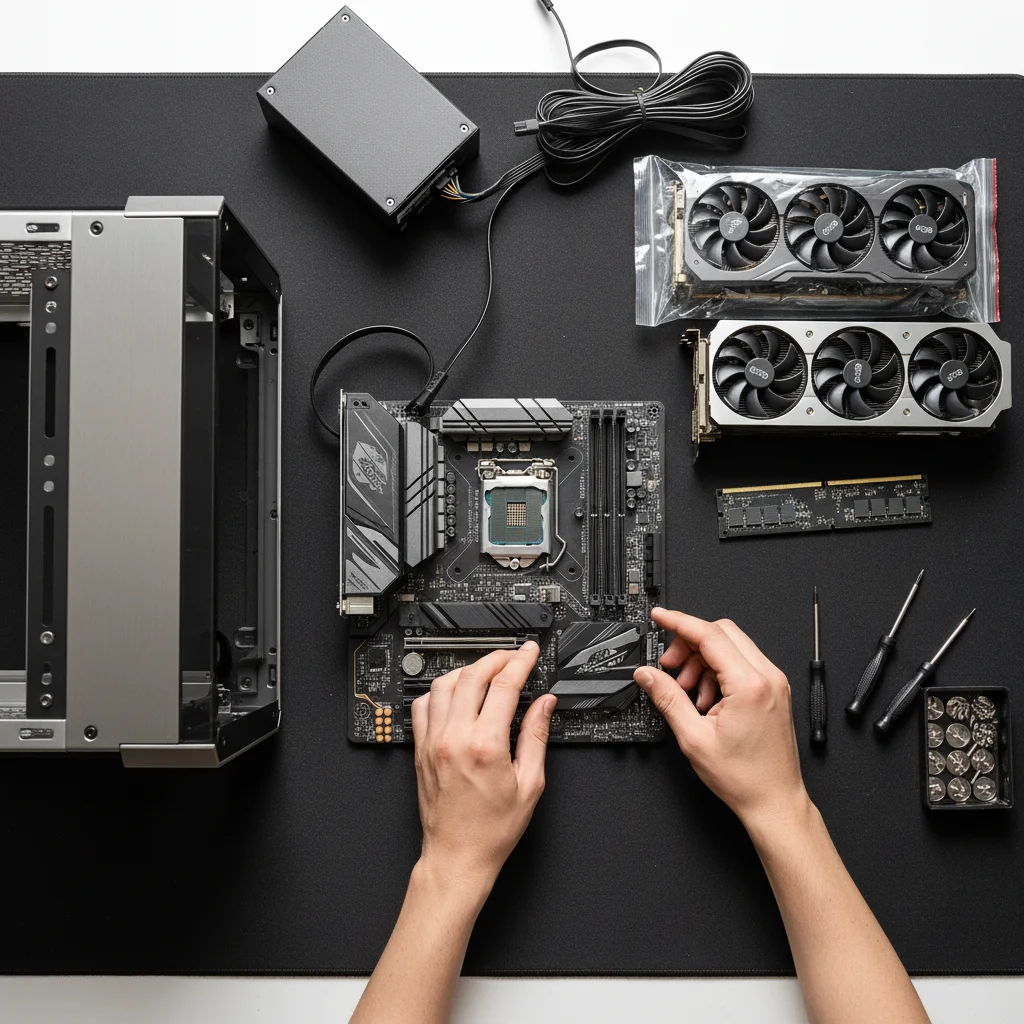
Once all your parts arrive, you’re ready for the main event. Set aside a few hours in a clean, well-lit, and static-free workspace.
Step-by-Step Assembly Guide
1. Prepare the Case
Open the side panels of your case. Firstly, install the case fans in their designated spots if they aren’t pre-installed. Subsequently, locate the motherboard standoffs (small brass spacers) and screw them into the case according to your motherboard’s form factor.
2. Install the CPU & Cooler
Open the CPU socket lever on the motherboard. Carefully align the golden triangle on the CPU with the indicator on the socket and place it in gently—do not force it. Close the lever to secure it. Apply a small pea-sized amount of thermal paste to the CPU’s heat spreader (if your cooler doesn’t have it pre-applied), then mount the CPU cooler according to its instructions.
3. Install RAM & M.2 SSD
These are the easiest parts to install. Push down the clips at the ends of the RAM slots on the motherboard. Align the notch on the RAM stick with the slot and press firmly until the clips snap back up. For an M.2 NVMe SSD, locate the slot, insert the drive at a slight angle, and secure it with the included tiny screw.
4. Mount the Motherboard
Carefully lower the motherboard with the CPU and RAM installed into the case, aligning its rear I/O shield with the cutout. Screw it into the standoffs using the provided screws. Don’t overtighten.
5. Install the Power Supply & GPU
Mount the PSU in its designated bay at the bottom or top-rear of the case. Begin routing its cables toward the motherboard. Next, remove the appropriate expansion slot covers from the back of the case. Insert the GPU into the top PCIe x16 slot on the motherboard until it clicks, then screw it into the case.
6. Connect All Cables
This is the most meticulous part. Connect the following:
* 24-pin ATX cable from PSU to motherboard.
* CPU power cable (usually 4+4 pin) to the top-left of the motherboard.
* PCIe power cables to the GPU.
* SATA power & data cables to any 2.5”/3.5” drives.
* Case front-panel connectors (power switch, reset, USB, audio) to the tiny pins on the motherboard (consult your motherboard manual).
7. Final Checks & First Boot
Double-check that all cables are securely connected and not obstructing fans. Therefore, close the case panels. Connect your monitor, keyboard, mouse, and power cable. Finally, flip the PSU switch to “on” and press the case’s power button.
Phase 3: Setup and Installation
If all goes well, you’ll see the motherboard’s splash screen on your monitor. However, you’re not done yet!
- Enter BIOS/UEFI: Press the key indicated (often Delete or F2) as the system starts to enter the BIOS. Here, you can check that all RAM is detected and enable your SSD.
- Install Operating System: Insert your Windows or Linux installation USB drive. Boot from it (you may need to change the boot order in the BIOS) and follow the on-screen instructions to install the OS on your primary SSD.
- Install Drivers: Once in the OS, download and install the latest drivers for your motherboard, GPU, and other components from the manufacturers’ websites. This ensures optimal performance and stability.
- Update & Personalize: Run system updates for your OS. Then, you can install your essential programs, games, and customize your settings.
Troubleshooting Common Issues
Even with careful planning, you might encounter a snag. Here’s a quick reference for common problems:
| Symptom | Likely Cause | Solution |
|---|---|---|
| No power, no lights | PSU switch off, cable not seated, front-panel connectors wrong. | Check PSU switch and wall connection. Re-seat the 24-pin and CPU power cables. Double-check front-panel connector alignment. |
| Powers on but no display | GPU not seated, monitor input wrong, RAM issue. | Ensure GPU is fully clicked into its slot and has power cables connected. Check monitor input source. Try re-seating RAM sticks one at a time. |
| System boots then shuts off | CPU overheating, insufficient PSU power. | Verify CPU cooler is mounted correctly with thermal paste. Confirm PSU wattage is adequate for your components. |
Building your own PC is a fantastic journey that blends technical skill with personal expression. By following this structured approach, you minimize risks and maximize the joy of creating something uniquely powerful for your needs.
The knowledge you gain is invaluable, much like understanding your own body’s needs—similar to how learning about specific nutrients, like the benefits highlighted in our blood orange nutrition information guide, can optimize your health. Furthermore, the satisfaction of solving problems and optimizing performance is a reward in itself, providing a sense of accomplishment that pre-built machines simply cannot match. Happy building


3 thoughts on “How to Build a Custom PC Guide”
Comments are closed.